


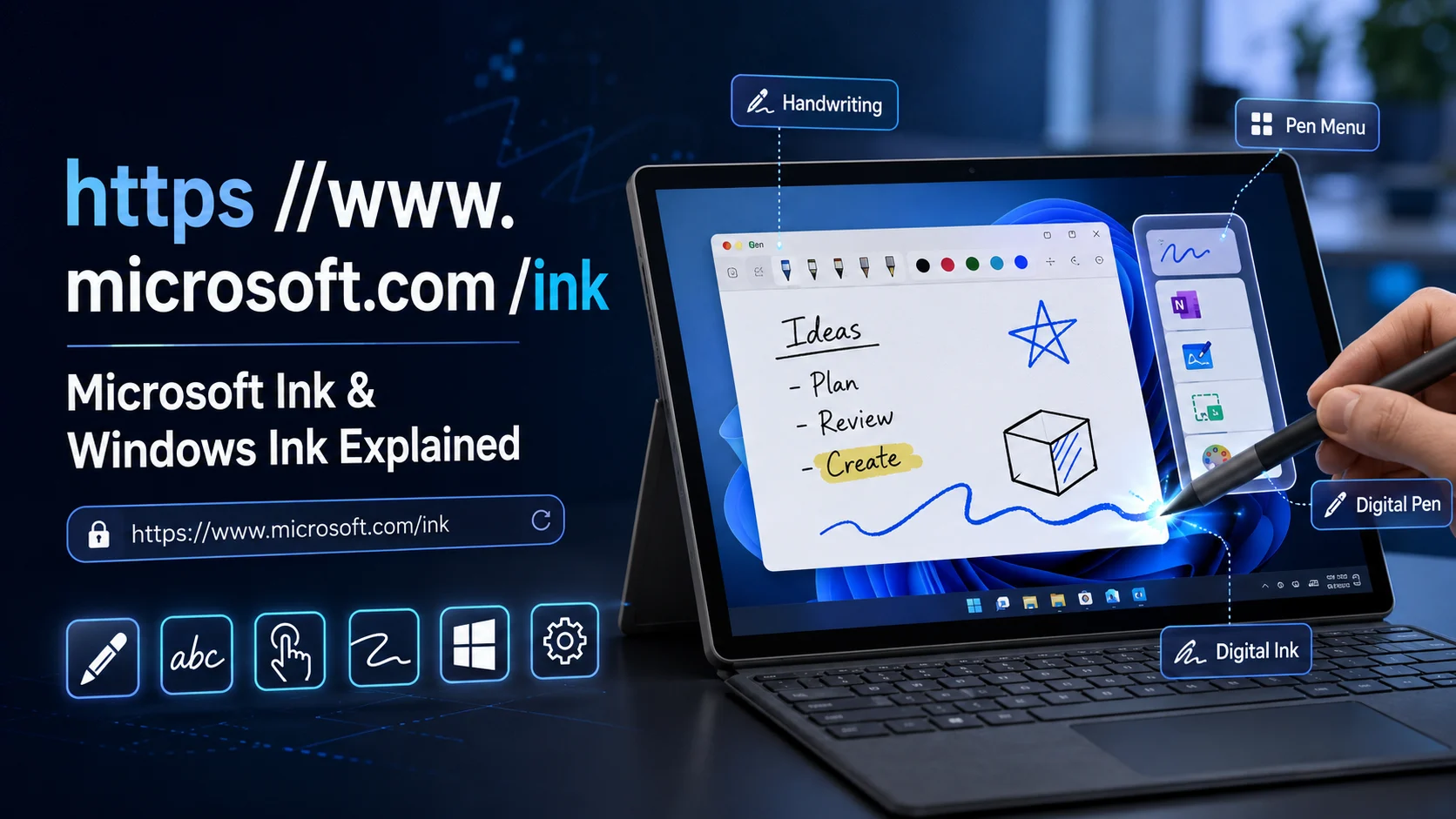
If you searched for https //www.microsoft.com /ink, you may be trying to find Microsoft’s digital pen and inking features. The search query is usually written with spaces, but a web address uses the standard https:// format and has no spaces.
I would separate the URL from the technology itself. Windows Ink is the more useful term for the pen, handwriting, drawing, and annotation features available on compatible Windows devices.
Quick Answer
https //www.microsoft.com /ink is a search-style version of the Microsoft web address associated with Ink. Windows Ink refers to the pen and digital-inking features built into Windows and supported apps. You do not normally install Windows Ink as a separate program. Your experience depends on your Windows version, touchscreen, digital pen, and app support.
What Is Windows Ink?

Windows Ink is a set of features that lets you use a digital pen to write, draw, mark up content, and interact with a compatible Windows device.
Instead of treating the pen like a simple mouse, Windows can capture the actual ink strokes you make. Compatible apps can then display, edit, recognize, or convert those strokes.
For example, I could use a digital pen to write notes in a notebook app, draw a diagram, mark up a screenshot, or annotate a document. Some applications can also turn handwriting into typed text.
Windows Ink can collect more information than basic touch input. Depending on the hardware and software, this can include the pen’s position, pressure, and other pen-related data.
What Does the Microsoft Ink URL Mean?
The query https //www.microsoft.com /ink is simply an unusual way of writing a web address.
The standard format of a secure web address is:
The spaces in the search query are generally a formatting issue rather than part of the actual address.
There is another point worth keeping in mind: a web URL and Windows Ink are two different things. Even if a Microsoft page redirects, changes, or no longer displays the page you expected, that does not mean the Windows pen features have disappeared.
If my goal were to use pen input, I would focus on the Windows settings and compatible applications on the PC rather than relying on a particular web page.
Microsoft Ink vs Windows Ink: Are They Different?

These terms are easy to mix up, especially in search results.
| Term | Meaning |
| Microsoft Ink | A common term people use when searching for Microsoft’s inking technology |
| Windows Ink | Windows features and technology for digital pen and ink input |
| Digital ink | The strokes created when you write or draw digitally |
| Pen Menu | A Windows 11 menu that provides quick access to pen-related apps |
| Digital pen | A pen designed to provide input to a compatible screen or digitizer |
I would use Windows Ink when talking about the actual Windows feature set. The term Microsoft Ink is more likely to appear in searches for the technology or related web pages.
What Can You Do With Windows Ink?
The usefulness of Windows Ink depends heavily on the device and application. Still, there are several common things you can do with compatible pen hardware.
Write handwritten notes
A digital pen can make a touchscreen Windows device feel more like a notebook.
You can write directly on supported apps instead of typing every note with a keyboard. This can be useful for short notes, diagrams, formulas, lists, and other information that is faster to write than type.
Draw and sketch
Artists, students, designers, and casual users can use digital ink for drawing and sketching.
Pressure-sensitive hardware can also change how a stroke appears. For example, an application may use different pressure levels to produce thicker or thinner lines.
Annotate documents
A pen can be useful for marking up documents, presentations, screenshots, and other content.
Instead of switching between a mouse and keyboard, I can use the pen to circle something, underline text, add a note, or point to an area of a document.
Convert handwriting into text
Some Windows features and applications can recognize handwritten strokes and convert them into text.
This is not the same as every handwritten mark automatically becoming typed text. Recognition depends on the feature, language, application, and device.
Mark up screenshots
A screenshot can become much more useful when you can draw directly over it.
For example, I could capture part of a webpage and circle a button, add an arrow, or write a short explanation before sharing it.
Create and edit shapes
Some applications can recognize drawn shapes and turn them into cleaner digital objects. This can help with diagrams, presentations, and simple visual planning.
Office applications can provide features that convert ink into text or standard shapes, although the exact tools vary by application.
Which Apps Can You Use With Windows Ink?
Windows Ink does not mean every Windows application has exactly the same pen features.
Different apps can support different levels of digital ink.
| App or type of app | Common pen use |
| OneNote | Handwritten notes, drawing, highlighting |
| Whiteboard | Freehand drawing and visual planning |
| Word | Handwriting, annotation, and ink editing |
| PowerPoint | Presentation markup and ink-to-shape features |
| Snipping Tool | Screenshot markup |
| Drawing apps | Sketching and pressure-sensitive work |
| Other compatible apps | Depends on the application’s pen support |
This distinction matters. A pen may work as a pointing device throughout Windows while offering advanced handwriting or drawing features only in applications that support them.
What Hardware Do You Need for Windows Ink?
You cannot assume that every Windows computer will provide the same pen experience.
For a proper digital-pen setup, I would check four things:
- The PC or tablet supports pen input.
- The screen or digitizer supports the type of pen you want to use.
- The pen is compatible with the device.
- The application supports the features you want.
A touchscreen alone does not guarantee full digital-pen support.
A device may accept finger touch but lack the hardware needed for an active pen. This is why checking the computer’s specifications before buying a stylus can save you from compatibility problems.
Active Pen vs Basic Stylus

One of the biggest differences between digital pens is how they communicate with the device.
A basic passive stylus generally behaves much like a finger. It does not contain the electronics needed to provide the richer information available from an active pen.
An active pen can provide additional input information, such as pressure and hover data, when the computer and pen support those features. Active pen systems can also provide better palm rejection.
| Feature | Passive stylus | Active pen |
| Basic touch input | Usually | Yes |
| Electronics inside pen | No | Yes |
| Pressure information | Usually no | Supported on compatible systems |
| Hover information | Usually no | Supported on some systems |
| Advanced handwriting | Limited | Better suited |
| Palm rejection | More limited | More capable on compatible devices |
If I wanted to take handwritten notes or draw regularly, I would look for an active pen that is specifically compatible with the device.
How to Set Up Pen Features in Windows 11

Once you have compatible hardware, setting up pen features is fairly straightforward.
1. Connect the pen if required
Some digital pens need Bluetooth for additional functions, while the actual writing input can depend on the pen and screen technology.
Follow the instructions for the specific pen and device.
2. Open Windows Settings
Go to the Windows settings area for Bluetooth & devices and look for Pen & Windows Ink.
This area contains settings for supported pen behavior, shortcuts, and handwriting-related options.
3. Check your pen settings
Depending on the device, you may be able to select your writing hand and change what certain pen buttons do.
Some pens also have their own settings or companion software.
4. Test the pen in a compatible app
I recommend testing the pen in a basic inking application first.
Write a few words, draw a few lines, and test any buttons or shortcuts. If basic input works, you can then check the features you actually need.
What Is the Pen Menu in Windows 11?
Windows 11 uses a Pen Menu to give users quick access to pen-related applications.
The menu can provide shortcuts to apps such as OneNote, Whiteboard, Snipping Tool, and Journal. You can also customize the available shortcuts, with the exact options depending on your Windows setup.
If the Pen Menu does not appear, check the taskbar settings. The option may need to be enabled before its icon appears.
I find this more useful than opening an application manually every time I want to make a quick note or mark something on the screen.
Windows Ink on Windows 10 vs Windows 11

The general idea of digital ink exists across Windows versions, but the user interface has changed.
Windows 11 uses the newer Pen Menu approach, while older Windows versions used the Windows Ink Workspace experience.
| Area | Windows 10 | Windows 11 |
| Digital pen input | Supported on compatible hardware | Supported on compatible hardware |
| Pen settings | Available | Available |
| Ink features | Available in supported apps | Available in supported apps |
| Ink Workspace | Older experience | Newer Pen Menu experience |
| Handwriting | Supported where available | Supported where available |
There is also a practical reason to focus on Windows 11 now: official support for Windows 10 ended on October 14, 2025.
How Does Handwriting Recognition Work?

When you write on a compatible screen, the computer can capture your pen movement as digital ink.
A simplified version looks like this:
Pen movement → Digital ink strokes → Recognition → Text or other digital content
The system can analyze the strokes and, where supported, identify handwriting as text. Some systems can also recognize shapes or other structures.
The original ink strokes can remain useful as digital drawings rather than being immediately converted into typed characters. This gives applications more flexibility when working with handwritten content.
What Is Digital Ink?
Digital ink is the electronic version of a handwritten or drawn stroke.
Think of it as the raw mark created by your pen. An application can display that mark on the screen, save it, edit it, recognize it, or use it as part of a drawing.
Digital ink is different from simply moving a mouse pointer because pen systems can capture more information about how the stroke was made.
That can include position, pressure, and other details supported by the device and application.
What Is Pressure Sensitivity?

Pressure sensitivity allows a compatible pen system to detect how hard you press.
In a drawing application, lighter pressure might produce a thinner line while stronger pressure can produce a thicker line. The exact result depends on the pen, screen, driver, and application.
This feature matters most for drawing, illustration, handwriting, and other work where line control is useful.
I would not assume that every Windows pen supports the same pressure features. Hardware compatibility comes first.
What Is Palm Rejection?

Palm rejection prevents your hand from creating unwanted touch input while you write.
This matters because writing naturally involves resting part of your hand on the screen. A compatible pen and touchscreen can distinguish pen input from unwanted touch input and reduce accidental marks.
Palm rejection is one reason I would choose a proper active pen system over a basic touchscreen stylus for regular handwriting.
Still, performance depends on the device and pen. It is not a feature that works identically on every Windows touchscreen.
Windows Ink for Students
For students, a digital pen can make a Windows tablet or 2-in-1 laptop more useful.
Some practical uses include:
- Writing class notes
- Drawing diagrams
- Highlighting documents
- Adding handwritten explanations
- Solving problems on screen
- Marking up study material
The biggest benefit is flexibility. I can type a long assignment with the keyboard but switch to a pen when handwriting or drawing makes more sense.
Windows Ink for Office Work
Pen input can also be useful outside school.
For example, I could use it to:
- Mark up a presentation
- Add notes to a document
- Circle information in a screenshot
- Sketch a quick idea
- Sign or annotate supported documents
- Navigate a touchscreen presentation
It works best as an additional input method rather than a complete replacement for a mouse and keyboard.
Windows Ink for Creative Work
Artists and designers have more reason to care about pressure sensitivity and pen accuracy.
A compatible pen can provide more natural control than a finger when drawing. Applications that support pressure, tilt, different brush types, and other pen data can make use of that extra input.
However, the pen itself is only one part of the setup. The display, digitizer, application, drivers, and supported features all affect the final experience.
Windows Ink vs Using Your Finger
A touchscreen and a digital pen serve different purposes.
| Digital pen | Finger |
| More precise for writing | Better for general touch |
| Good for handwriting | Good for tapping and scrolling |
| Useful for drawing | Useful for basic gestures |
| Can support pressure | Usually does not provide pen pressure |
| Can support palm rejection | Hand may be treated as touch |
| Works well for annotation | Less precise for small marks |
If I am browsing or scrolling, I prefer touch. If I need to write, draw, or annotate, a compatible digital pen makes more sense.
Does Windows Ink Work on Every Windows Computer?

No.
This is one of the most important points to check before buying a pen.
Windows may support digital-pen technology, but your particular computer still needs compatible hardware. A device may have a touchscreen without having a digitizer that supports the active pen you want.
Application support also matters. A pen can work for basic navigation while advanced handwriting, pressure, or ink-to-text features remain unavailable in a particular application.
Before buying a pen, check:
- Your exact computer model
- Supported pen technology
- Screen or digitizer specifications
- Windows version
- Required drivers or software
- App compatibility
Is Windows Ink Something You Need to Install?
In general, no.
Windows Ink is not something I would treat like a normal application that you download and install separately. The Windows operating system provides the underlying pen and inking capabilities, while individual applications can add their own ink tools.
You may still need separate applications for specific tasks, such as note-taking, drawing, or document editing.
The key point is that installing a random “Windows Ink” program will not turn an incompatible touchscreen into a full active-pen display.
Common Windows Ink Problems and Fixes
If your pen is not working as expected, I would check the basics before assuming the Windows Ink feature itself is broken.
| Problem | What to check first |
| Pen does not work | Pen and screen compatibility |
| Pen is not detected | Connection, battery, and device settings |
| Writing works but pressure does not | Pen and app pressure support |
| Palm rejection is poor | Active pen and device compatibility |
| Pen Menu is missing | Windows taskbar and pen settings |
| Handwriting recognition is inaccurate | Input language and app support |
| Pen works in one app but not another | Application-specific ink support |
| Pen button does nothing | Shortcut settings and pen software |
Check the pen battery
Some digital pens use rechargeable batteries, while others use replaceable batteries. A low battery can affect features or prevent the pen from working correctly, depending on the model.
Check compatibility
If the pen never works correctly, confirm that it is actually supported by your PC.
This is especially important when using a third-party stylus. Similar-looking pens can use different technologies.
Check Windows settings
Open the pen settings and review the available options. Make sure the features you need are enabled.
Test another compatible application
If the pen works in one application but not another, the problem may be application support rather than Windows Ink itself.
What If microsoft.com/ink Does Not Open?
If you enter the Microsoft Ink address and do not see the page you expected, I would not immediately assume something is wrong with Windows Ink.
Web pages can move, redirect, or change over time. The online address is separate from the pen technology built into Windows.
If your goal is to use a digital pen, check the Pen & Windows Ink settings on your computer and test the pen in a compatible application.
Also make sure you have entered the address correctly. The standard form is:
There should be no spaces inside the URL.
What Should You Check Before Buying a Windows Pen?
Buying a pen based only on the word “Windows” can lead to compatibility problems.
I would check these points first:
1. Device compatibility
Find your exact laptop, tablet, or 2-in-1 model and check which pens it supports.
2. Pen technology
Do not assume that every active pen works with every touchscreen.
3. Pressure sensitivity
If you plan to draw, check how many pressure levels the pen and device support and whether your preferred application can use them.
4. Palm rejection
If handwriting is your main use, palm rejection should be high on your checklist.
5. Shortcut buttons
Some pens have buttons that can open applications or perform other actions.
6. Battery and charging
Check whether the pen uses a replaceable battery, rechargeable battery, or another charging method.
7. Application support
Make sure the apps you plan to use support the pen features you care about.
Final Takeaway
If you searched for https //www.microsoft.com /ink, the first thing I would clarify is the difference between the URL and the technology.
The URL is a web address, while Windows Ink is the term that matters more when you want to write, draw, annotate, or use a digital pen with Windows.
You also do not need to own a particular type of Windows computer to use pen input. What matters is the combination of your Windows version, touchscreen or digitizer, compatible digital pen, drivers, and application support.
For basic touchscreen use, a finger may be enough. For handwriting, drawing, pressure-sensitive input, and precise annotation, a compatible active pen can provide a much better experience.
Frequently Asked Questions
What is the Microsoft Ink URL?
The search query https //www.microsoft.com /ink refers to the Microsoft Ink web address commonly associated with Microsoft’s inking technology. The properly formatted URL contains https:// and no spaces.
Is Microsoft Ink free?
Windows Ink is part of the Windows experience on compatible devices rather than a separate paid application. Individual applications and hardware can have their own costs.
Do I need to download Windows Ink?
No separate Windows Ink download is normally required. The available features depend on Windows, compatible hardware, and application support.
Does Windows Ink work without a Surface device?
Yes. Windows supports digital pen input on compatible PCs, laptops, tablets, and 2-in-1 devices. You do not have to assume that Surface hardware is the only option.
Can Windows Ink convert handwriting to text?
Compatible Windows features and applications can convert handwriting into text. Support varies by application, language, device, and Windows feature.
Why is my Windows pen not working?
Start by checking pen compatibility, battery or charging status, connection settings, Windows pen settings, and application support.
Does every touchscreen laptop support a digital pen?
No. A touchscreen does not automatically mean the device supports every active pen. Check the exact hardware specifications before buying a stylus.
Is Windows Ink available in Windows 11?
Yes. Windows 11 supports digital pen input and provides pen-related settings and the Pen Menu on compatible systems.
