
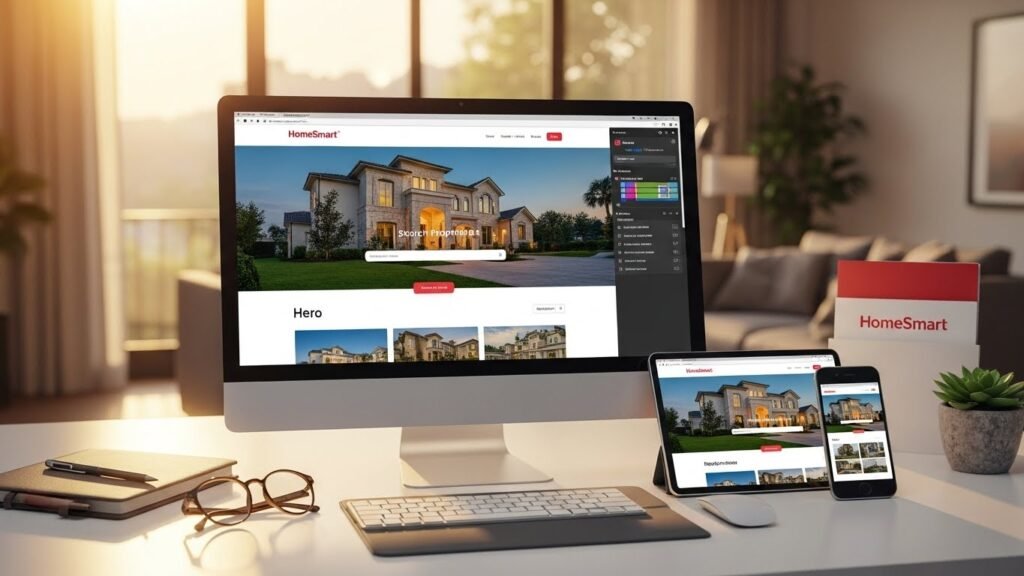
Keeping your real estate site fresh is a total game-changer for your online vibe. If you are a HomeSmart agent using SmartSites 2.0, you already have a killer tool for your business. You do not need to be a tech wizard to make it look amazing. This guide shows you exactly how to edit HomeSmart website builder to keep your brand looking sharp.
Introduction to HomeSmart Website Builder
In the fast world of real estate, your website is like your digital handshake. Most folks will check you out online before they ever give you a call. Having a professional site helps you win trust and show off your expertise. It works for you all day and night while you are out closing deals.
SmartSites 2.0 is the exclusive tool built just for the HomeSmart family. It is way better than using random sites like Wix or Squarespace. This platform connects right into the HomeSmart system for a smooth experience. You get all the power of a pro site without the headache of coding.
The main goal of this builder is to make your life easier. It focuses on high performance so your pages load up fast. You can customize everything to fit your personal style and local market. This guide will walk you through every single step of the process.
What is HomeSmart Website Builder (SmartSites 2.0)?
SmartSites 2.0 is an all-in-one management tool for your real estate business. It was built from the ground up to help HomeSmart agents succeed online. You can manage your listings, bio, and leads all in one spot. It is basically your home base for everything digital.
This tool uses no-code technology so anyone can use it. You do not have to hire a fancy developer to make small changes. You can swap out photos or update your phone number in seconds. It gives you total control over how the world sees your business.
- Exclusive Access: Only HomeSmart agents get to use this powerful platform.
- Ready-to-Use: You get templates that are already set up for real estate.
- No Coding: Everything is designed to be simple and user-friendly.
- Real-Time: When you hit save, your updates go live for everyone to see.
Key Features of the HomeSmart Website Builder
The builder comes packed with features that help you generate more leads. It is not just about looks; it is about getting results. These tools are built to help you grow your real estate empire. You can easily manage every part of your site from the dashboard.
One of the best parts is the drag-and-drop editor. You can move things around until they look just right for you. It also has IDX integration to show live MLS listings. This keeps your site updated without you doing extra work.
- Lead Capture: Built-in forms help you grab contact info from visitors.
- Mobile Ready: Your site will look great on phones and tablets too.
- SEO Support: Tools are included to help you show up on Google.
- SmartCRM: Leads go straight into your CRM for quick follow-up.
- Custom Widgets: Add things like maps or social media feeds easily.
Accessing Your HomeSmart Website Dashboard
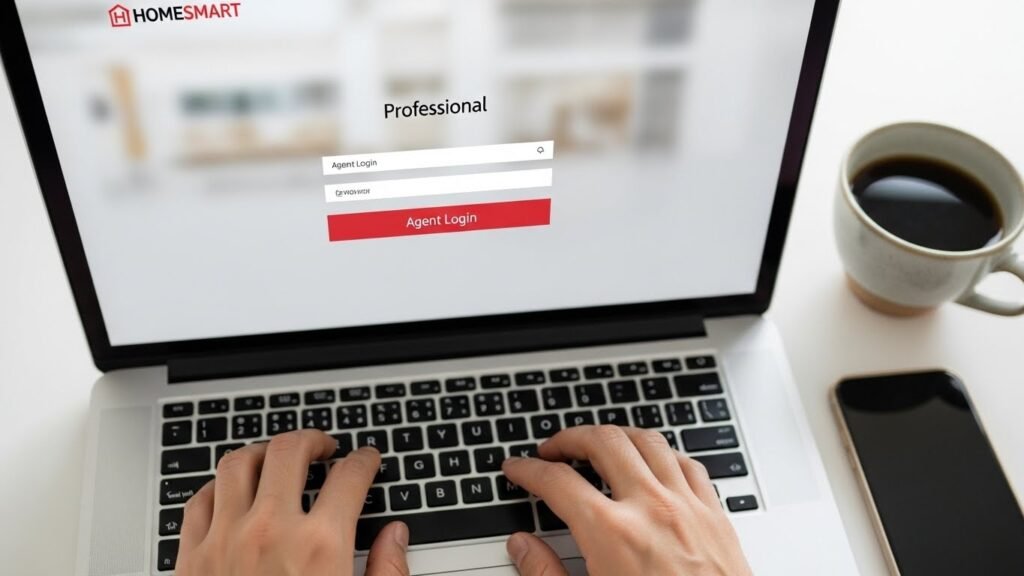
Getting started is super easy and only takes a minute. You just need to log into the main HomeSmart agent portal. This is the same place where you handle your other business tasks. From there, you can jump right into the website editor.
Make sure you have your agent credentials ready to go. It is a good idea to use a modern browser for the best speed. Chrome or Edge usually work the best with the editing tools. Once you are in, you will see all your website options.
- Login Site: Head over to the main HomeSmart website to start.
- SmartTools: Look for the SmartTools section in your main menu.
- Website Tools: Click on the SmartSites 2.0 option to open the editor.
- Stay Updated: Keep your browser updated so the editor runs smoothly.
Understanding the Website Builder Interface
The dashboard is where all the magic happens for your site. It is divided into clear sections so you do not get lost. You can see a preview of your site while you work on it. Everything you need is right there on the main screen.
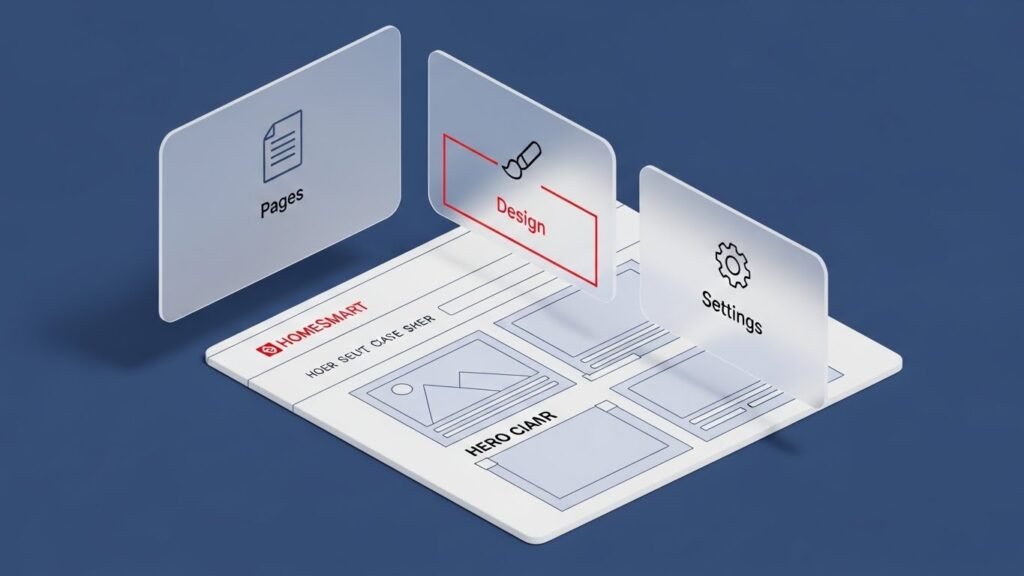
The interface is built to be intuitive and very easy to learn. You will find menus for pages, design, and site settings. Managing your header and footer is also quite simple from here. You can control your whole online presence with just a few clicks.
The Main Dashboard
The main dashboard gives you a quick look at your site status. You can see your recent activity and any new leads here. It is the starting point for every editing session you have. You will see links to all the different parts of your site.
Header and Menu Management
Your header is the first thing people see when they land. You can add your logo and contact info right at the top. Managing your navigation links is also part of this section. It helps people find their way around your listings and bio.
The Three Main Control Tabs
The editor uses three main tabs to keep things organized. This makes it easy to find the specific tool you need. You can switch between them whenever you want to change something. Each tab handles a different part of your website’s soul.
- Pages Tab: This is where you add or edit specific sections of your site.
- Design Tab: Use this to change your colors, fonts, and overall vibe.
- Settings Tab: This handles the technical stuff like your domain and SEO.
Comprehensive Step-by-Step Guide to Editing Your Website
Now let’s get into the nitty-gritty of how to edit HomeSmart website builder. We will go over everything from changing text to adding videos. It is much simpler than it looks at first glance. Just follow these steps and you will be a pro in no time.
Selecting and Organizing Pages
The pages tab shows you a list of every page on your site. You can click on the gear icon to change page settings. It is easy to rename pages so they make more sense. You can also drag them to change the order in your menu.
- Rename Pages: Change “About” to “Meet the Team” for a personal touch.
- Hide Pages: You can hide pages that you are still working on.
- Add Blocks: Drop in new sections like text or images with one click.
- Organize Flow: Make sure your most important pages are easy to find.
Editing On-Page Content with the WYSIWYG Editor
The WYSIWYG editor stands for “What You See Is What You Get”. It means your edits look exactly like they will on the live site. Just click on a text block to start typing your changes. It works a lot like Microsoft Word or a simple email.
- Rich Formatting: You can use bold or italics to make text pop.
- Bullet Lists: Use lists to make your info easy for clients to read.
- Font Choices: Pick a font that matches your personal brand style.
- Advanced Code: If you know HTML, you can use the code view too.
Managing Media: Images, Videos, and Documents
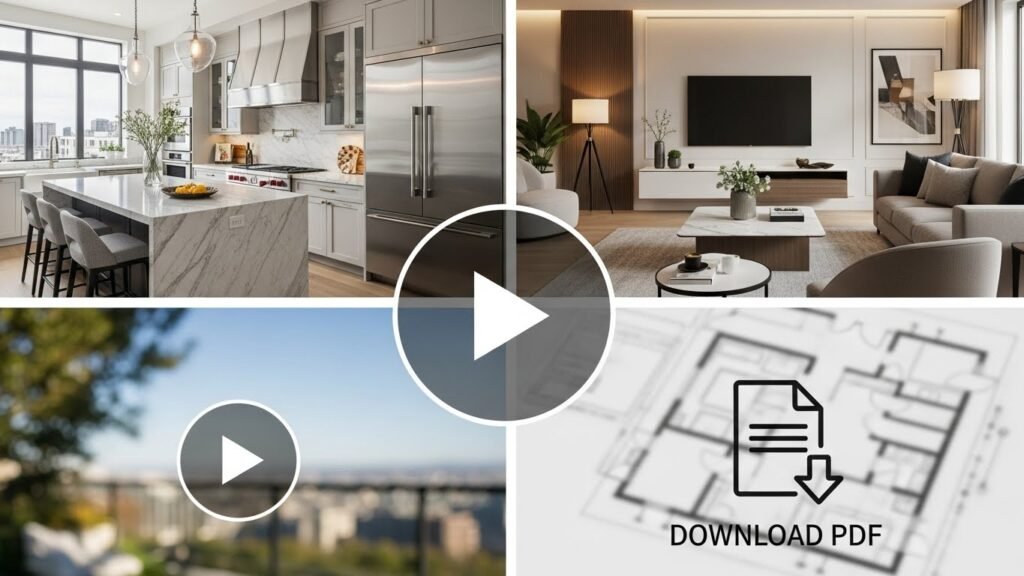
Visuals are huge in real estate so you need great photos. You can upload your headshot and property pics very easily. The builder also supports videos and downloadable PDF files. This helps you give clients all the info they need.
- Image Formats: You can use common files like JPEG and PNG.
- Video Links: Embed videos from YouTube or Vimeo to show off homes.
- File Library: Store all your brochures and guides in one place.
- Speed Tip: Always compress your images so your site stays fast.
Updating Contact Details and Calls to Action (CTAs)
Your contact info must be correct so leads can reach you. You can update your phone and email in the footer editor. Adding buttons like “Call Me” is a great way to get leads. These buttons are called CTAs or Calls to Action.
- Clickable Links: Set up your phone number so mobile users can tap it.
- Email Links: Use special links so people can email you instantly.
- Button Style: Change the color and size of your buttons to stand out.
- Direct Paths: Link buttons directly to your contact or listing pages.
Integrating Forms and Lead Capture Tools
Forms are the best way to get info from new clients. You can add a form block to any page on your site. Choose the fields you need like name, email, or phone. It is a simple way to start a conversation with visitors.
- Custom Fields: Ask specific questions to learn about your clients.
- CRM Routing: Leads can go straight to your SmartCRM automatically.
- Thank You: Set up a nice message for after they hit submit.
- Redirects: Send people to a specific page after they fill out a form.
Advanced Design and Layout Customization
Making your site look unique is key to standing out. You can customize the layout to fit your specific market. The design tab gives you control over the whole look. Small changes can make a huge difference in your brand.
Personalizing Your Brand Visuals
Your logo is a big part of your professional image. You can swap the default logo for your own in seconds. Pick a color palette that feels right for your business. Stick to clean fonts so everyone can read your content.
- Logo Upload: Put your personal brand front and center on the site.
- Color Themes: Use HomeSmart colors or pick your own custom vibe.
- Modern Fonts: Use fonts like Lato or Open Sans for a fresh look.
- Consistency: Keep the same look on every page for a pro feel.
Design Best Practices for Real Estate
A clean site is always better than a cluttered one. Use white space so your photos and text have room to breathe. Make sure your site is easy to navigate on a phone. A good design keeps people on your site much longer.
- Use White Space: Do not crowd your pages with too much stuff.
- High Quality: Only use sharp and clear photos of your listings.
- Simple Menus: Keep your navigation easy so no one gets lost.
- User Focus: Always design with your client’s needs in mind.
Managing Property Listings and IDX Integration

Property listings are the heart of any real estate site. The HomeSmart builder handles this part automatically for you. It uses IDX to pull the latest data from the MLS. This saves you a ton of time on manual updates.
The Power of MLS Syncing
When a listing changes in the MLS, it updates on your site. You do not have to worry about showing sold homes. This keeps your info accurate and builds trust with clients. It is a “set it and forget it” kind of feature.
Customizing the Listings Display
You can still control which homes get the most attention. Use the “Featured Listings” tool to show off your top picks. You can organize them by price or location very easily. Adding your own descriptions helps with search engine rankings too.
- Featured Homes: Put your best listings right on the front page.
- Smart Sorting: Let clients filter homes by the features they want.
- Custom Tags: Add tags like “Hot Deal” or “Open House” to listings.
- Accuracy: Keep your site updated to follow MLS rules and laws.
Strategies for High-Conversion Landing Pages
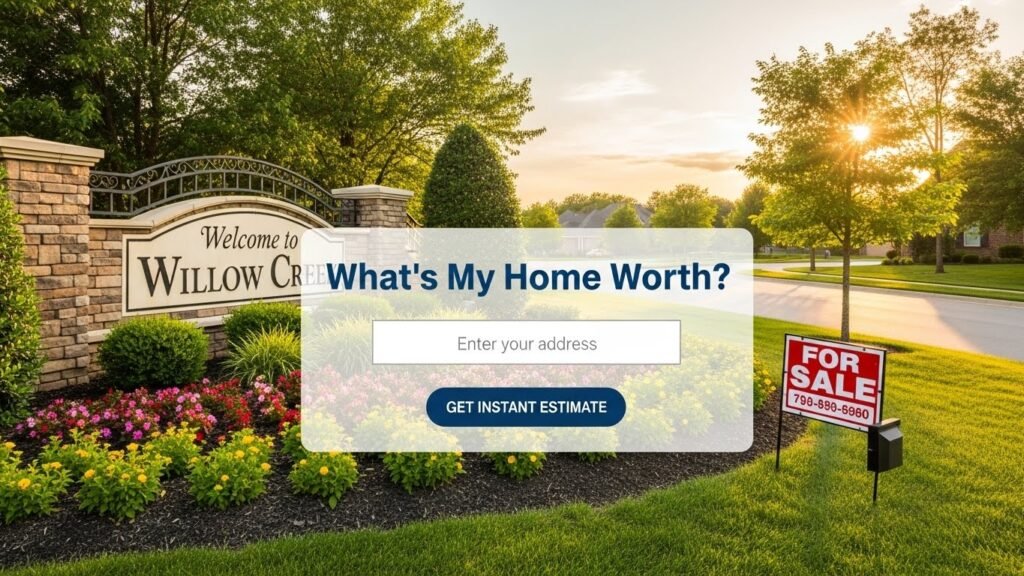
Landing pages are built to do one thing: get leads. You can create pages for specific types of buyers or sellers. These pages should have a clear goal and a simple form. They are perfect for running ads or social media posts.
Creating Area-Specific Community Pages
People love to search for homes in specific neighborhoods. You can build pages that focus on just one local area. Add some info about local schools and cool shops nearby. This makes you look like the ultimate local expert.
Building a “What’s My Home Worth?” Lead Magnet
Every seller wants to know the value of their home. You can add a page that offers a free home valuation. This is one of the best ways to find new sellers. Use a clear button that says “Get My Value Now”.
Optimizing SEO on Your HomeSmart Website
SEO stands for Search Engine Optimization and it is vital. It is how you get people to find you on Google. The builder has tools to make this part much easier. A little effort here goes a long way for your business.
Technical SEO Elements
You can edit the meta data for every page on your site. This includes titles and descriptions that show in search. Make sure your URLs are short and easy to read. Adding alt text to your images also helps a lot.
- Meta Titles: Use your name and city in the page title.
- Descriptions: Write a short summary that makes people want to click.
- Alt Text: Briefly describe what is in every photo you upload.
- Internal Links: Link between your pages to help Google find them.
Strategic Content Optimization
Use the words that your clients are actually searching for. If you work in Phoenix, use “Phoenix real estate” naturally. Do not overdo it or your text will sound weird. Fresh content is the best way to stay on top.
Content Marketing and Blogging Strategy
Blogging is a secret weapon for real estate agents. It helps you rank for more words on search engines. You can share your knowledge about the local market easily. It also gives you great stuff to post on social media.
Why Every Agent Needs a Blog
A blog shows that you know your stuff and are active. It builds a lot of trust before you even meet. You can answer common questions that buyers always ask you. It is a long-term play for getting free leads.
Content Ideas for Real Estate Blogs
You do not have to be a professional writer to blog. Just talk about what you do every single day. Share tips on how to get a home ready for sale. You can even highlight a cool new local park or cafe.
Advanced Tools and Analytics Setup
Tracking your results is the only way to get better. You can add special codes to see who visits your site. The settings tab is where you handle these pro tools. It helps you see which marketing is actually working.
- Google Analytics: See exactly how many people visit your site daily.
- Facebook Pixel: Use this if you want to run targeted ads later.
- Site Ownership: Verify your site so you can use Google’s pro tools.
- Redirects: Use 301 redirects if you ever delete an old page.
Integrating Social Media and Multi-Channel Marketing
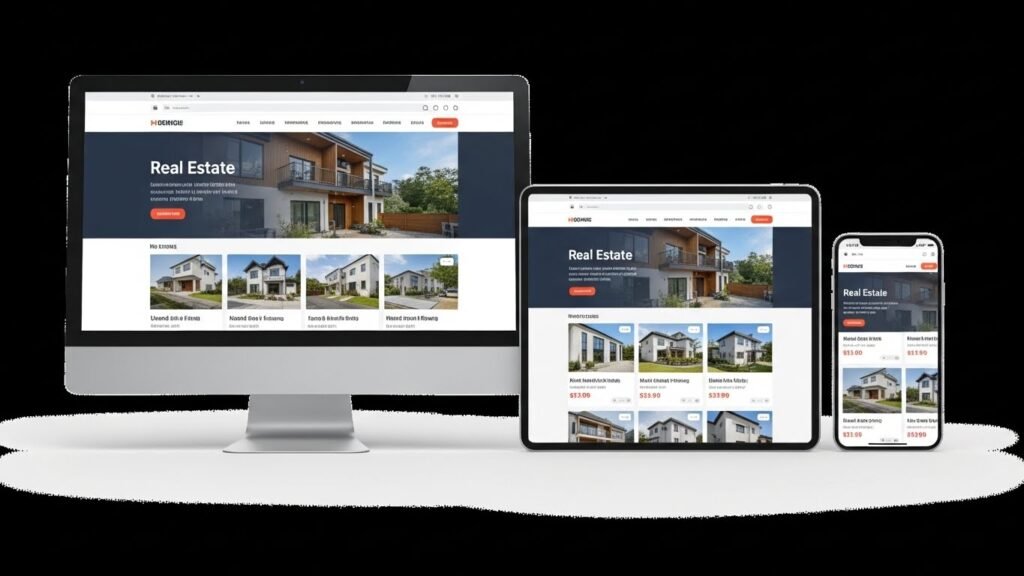
Your website should be the center of your online world. You can connect all your social media accounts easily. This helps people follow you on the platforms they love. It creates a smooth experience for all your followers.
Connecting Your Social Profiles
Add icons for Facebook, Instagram, and LinkedIn to your footer. This lets people see your latest posts with one click. You can also add “Share” buttons to your listings. This makes it easy for others to spread your word.
Leveraging the Website in Your Email Marketing
Include links to your site in every email you send out. You can link to a new blog post or a hot listing. This drives more traffic back to your home base. It is a great way to stay top-of-mind with leads.
Previewing, Saving, and Publishing Your Work
Always check your work before you let the world see it. The preview tool lets you see the site as a visitor. Check it on your phone to make sure it looks great. Once you are happy, just hit the publish button.
- Live Preview: See your changes without making them public yet.
- Mobile Test: Tap all the buttons on a phone to be sure.
- Save Often: Don’t lose your hard work if your internet drops.
- Publish: Hit this button to send your updates live to everyone.
Maintaining Your Website for Long-Term Success
A website is not a “one and done” kind of project. You need to keep it updated so it stays relevant. Set aside a little time each month for site maintenance. This ensures your business always looks its absolute best.
Monthly Maintenance Checklist
Check for any broken links that might annoy your visitors. Make sure your contact info is still 100% correct. Add a few new photos or a quick blog post. This keeps Google happy and your clients well-informed.
Compliance and Legal Considerations
Real estate has a lot of rules you must follow online. Ensure you have all the required logos and disclosures. Keep your privacy policy updated to protect your visitors. Following these rules keeps your license safe and sound.
Troubleshooting Common Editing Issues
Sometimes things don’t go perfectly, and that is okay. Most issues have a very quick and easy fix. Don’t panic if a page looks a bit weird at first. Here are some common fixes for the HomeSmart builder.
- Loading Issues: Try clearing your browser cache or using a new tab.
- Photo Glitches: Rename your file and try uploading it once more.
- Listing Gaps: Check your MLS connection in the site settings.
- Font Issues: Reset the theme styles to fix any weird formatting.
- Help Desk: Reach out to HomeSmart support if you get really stuck.
Conclusion
Knowing how to edit HomeSmart website builder gives you total power. You can build a brand that truly reflects who you are. SmartSites 2.0 is a massive asset for every HomeSmart agent. Take some time to explore and make the site your own. It will work hard for you and help you close more deals.
I have covered every part of the editing process for your site. Now it is your turn to log in and start creating. Your future clients are already waiting to find you online. Good luck building the best real estate site in your market.
Focus on being yourself and showing your true value. Use high-quality photos that make you look professional. Always have a clear way for people to contact you. Your website is your best tool for growing your business.
Frequently Asked Questions (FAQ)
What is the cost of using SmartSites 2.0 for HomeSmart agents?
The website builder is typically included as part of your agent technology package provided by the brokerage. While there are no monthly software fees for the basic version, you may have costs related to third-party domain registration or advanced custom integrations.
Can I transfer my existing website from WordPress to HomeSmart?
You cannot directly import a WordPress site into the HomeSmart builder because they use different coding languages. However, you can manually copy your text and images over to the SmartSites 2.0 blocks to replicate your previous design and layout.
How do I connect my professional email address to my website?
Your website and your email are handled separately even though they use the same domain name. You will need to update the MX records in your domain settings (like GoDaddy) to point to your email provider while the A records point to HomeSmart.
Is there a limit to how many pages I can create?
There is generally no strict limit on the number of pages you can add to your site. You are encouraged to create as many community and landing pages as needed to boost your local SEO and provide value to your clients.
Can I create a password-protected page for my private clients?
The current version of the builder does not support native password protection for individual pages. If you need to share private documents, it is better to host them on a secure drive and share the link only with specific people.
Does the HomeSmart website builder support multiple languages?
The builder does not have an automatic translation button, but you can create a second version of your pages in a different language. Many agents create a specific menu section for Spanish or other languages to serve their local demographic.
How do I add a pop-up window to collect email sign-ups?
SmartSites 2.0 focuses on clean layouts, so it does not have a built-in “annoying” pop-up tool. Instead, you can use a prominent lead capture form or a bright CTA button in the header to grab attention without interrupting the user experience.
Can I sell digital products like ebooks on my HomeSmart site?
The platform is designed specifically for real estate services rather than e-commerce. You can certainly offer a free ebook as a lead magnet through a file link, but for paid products, you would need to link out to an external payment processor.
How long does it take for changes to show up on Google?
Even though your site updates instantly when you hit publish, Google takes time to “crawl” the new info. It usually takes anywhere from a few days to a couple of weeks for search results to reflect your new meta titles and descriptions.
What should I do if my headshot looks blurry on the site?
Blurry photos usually happen when the original file size is too small. Make sure you are uploading a high-resolution version of your photo that is at least 1000 pixels wide so it stays crisp on retina displays and large monitors.
Can I add a live mortgage calculator widget?
Yes, you can add a mortgage calculator by using the custom widget or HTML block. Many third-party providers offer “embed codes” that you can simply copy and paste into your page to give buyers a helpful tool.
How do I set up an automated “New Listing Alert” for my visitors?
This is handled through the IDX settings and your SmartCRM integration. Visitors can save searches on your site, and the system will automatically email them when new properties that match their criteria hit the market.
Can I host a video background on my homepage banner?
While you can embed videos in content blocks, using a full-screen video background is often discouraged because it can slow down your site speed on mobile devices. A high-quality static image with a clear CTA is usually more effective.
How do I change the favicon that appears in the browser tab?
The favicon can usually be updated in the global settings or design tab of your dashboard. Uploading a small version of your personal logo ensures your brand is visible even when someone has twenty tabs open.
Is my HomeSmart website ADA compliant?
The templates are designed with accessibility in mind, but you must do your part too. This includes adding alt text to all your images and ensuring your color choices have enough contrast for people with visual impairments to read.
Can I add a “Live Chat” feature to my website?
You can integrate third-party chat tools like Facebook Messenger or Intercom by adding their tracking script into your site settings. This allows you to chat with visitors in real-time while they are browsing your listings.
How do I track which marketing source brought a lead to my site?
By using the UTM parameters mentioned in the guide, you can see if a lead came from a Facebook ad, a YouTube video, or an email. This info is usually visible in your connected Google Analytics account.
Can I customize the “Search Properties” sidebar?
The search filters are mostly standardized to ensure they work perfectly with the MLS feed. However, you can often choose which search fields are visible to simplify the process for your specific niche of buyers.
What happens to my website if I leave HomeSmart?
Since the builder is an exclusive benefit for HomeSmart agents, you would lose access to the SmartSites 2.0 platform if you move to another brokerage. It is always wise to keep a backup of your written bio and blog posts in a separate document.
How can I make my site load faster for mobile users?
The best way to boost speed is to manage your media wisely. Use compressed images, limit the number of heavy external scripts you add, and avoid using too many large video files on a single page.