
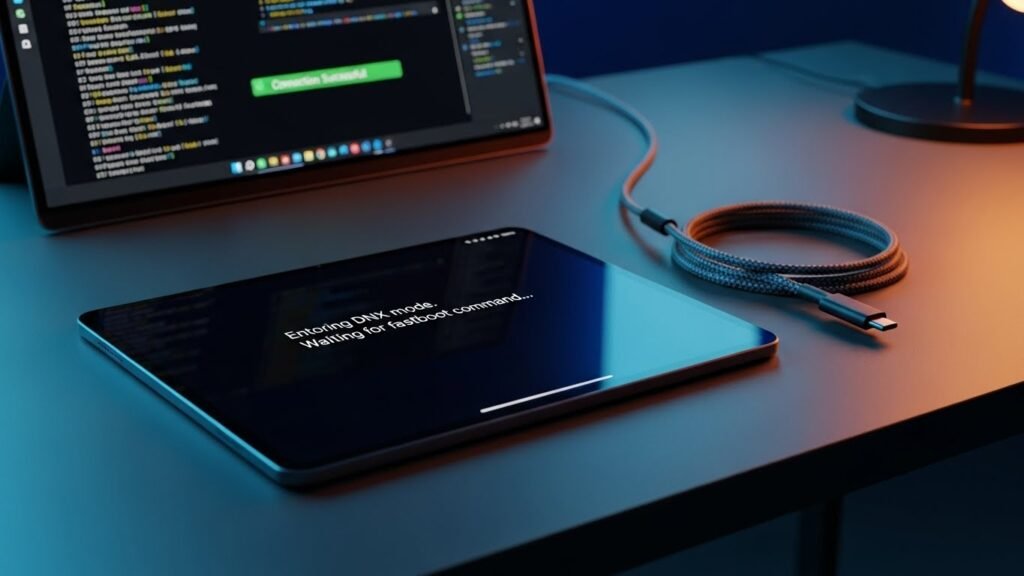
Finding the message entering dnx mode waiting for fastboot command on your screen is a real bummer. It usually happens when you least expect it during a reboot. This screen means your Intel tablet is stuck and needs some serious help. Do not worry because your device is not a total goner yet. This guide will walk you through every step to get back to your home screen. We will use simple tricks and some pro tools to fix this mess.
Introduction to the DNX Mode Phenomenon
That stark screen with white text is basically a cry for help from your gadget. It shows up on tablets that run on Intel chips when things go sideways. Most people panic and think they have a virus or a dead motherboard. That is usually not the case at all. Your tablet is just sitting in a special waiting room for software. It wants to talk to a computer so it can feel better.
Defining the Download-and-Execute (DNX) State
DNX stands for Download and Execute. It is a very low-level way for your hardware to talk to a PC. Think of it like a backup brain for your tablet. When the main system fails to start, this backup brain kicks in. It sits there waiting for you to send over some fresh files. It is a safe space designed by Intel to prevent total hardware failure.
The Relationship Between DNX Mode and the Fastboot Protocol
Fastboot is the language that your computer uses to talk to the DNX mode. When you see the message entering dnx mode waiting for fastboot command, it is listening. It wants a specific set of instructions to flash new software. Your PC sends these commands over a USB cable to fix the broken parts. This duo works together to let you repair the system without turning it on.
Why Your Device is Asking a Computer for Help
Your tablet cannot fix itself because its main boot files are likely messed up. It needs an outside source to provide the correct data. This usually happens on Intel-based Android or dual-OS tablets. Since it cannot find the OS, it asks for a computer to take over. It is essentially an SOS signal sent through your USB port.
Understanding DNX Fastboot Mode
Intel created this mode to make sure their chips were easy to service. It is most common on older tablets like the Dell Venue or Chuwi models. These devices use Intel Bay Trail or Cherry Trail processors. DNX mode is the foundation that allows fastboot to work its magic. Without this mode, a broken tablet would be a permanent paperweight.
The Role of Intel Platforms in Tablets
Intel chips like Bay Trail were super popular for cheap tablets a few years ago. They allowed these devices to run both Android and Windows. However, managing two systems makes the boot process pretty complex. When one system breaks, the whole thing might fall into DNX mode. It is a unique quirk of these specific Intel-powered machines.
The Low-Level Architecture of DNX
DNX is built right into the silicon of the Intel processor. It exists at a level even deeper than the BIOS or the OS. This means even if your hard drive is empty, DNX can still run. It acts as a bridge between the raw hardware and your flashing tools. This deep integration is why it is such a powerful recovery tool.
Why DNX is a Symptom, Not a Virus
Many users see a weird black screen and assume they got hacked. In reality, DNX is a built-in feature for repairs. It is a symptom that something in the boot chain failed to load. It could be a bad update or a corrupted file that caused the jump. Treat it like a service entrance for a technician to enter.
The Service Entrance Analogy
Imagine your tablet is a house and the front door is locked tight. DNX mode is like a small back window that someone left open. You can climb through that window to unlock the front door from the inside. By using a PC, you enter through that “window” to fix the system. It gives you a way to bypass the broken main software entirely.
The Technical Anatomy of the Intel Boot Process
The boot process on an Intel tablet is like a relay race. First, the hardware turns on and checks the power. Then, the UEFI firmware takes over to find the operating system. If it finds a problem, it stops the race and switches to DNX mode. Understanding this helps you see where the chain actually broke.
The Role of UEFI in Intel Tablets
UEFI is the modern version of the old school BIOS you see on PCs. It is responsible for telling the tablet which system to start first. On dual-boot tablets, it has to choose between Android and Windows. If the UEFI gets confused or corrupted, it gives up and enters DNX. This is why you often see this screen after a failed OS switch.
How the OS Loader Hands Off Control
Once the UEFI is happy, it hands a “baton” to the OS loader. This loader is what actually starts the Android or Windows kernel. If the loader is missing or the file is damaged, the hand-off fails. This failure is a primary reason for entering dnx mode waiting for fastboot command. The tablet just stays in that hand-off zone until you help it.
The Handshake Protocol
When you plug your tablet into a PC, a “handshake” happens. The PC asks “Who are you?” and the tablet says “I am in DNX mode.” If they agree on the language, the PC can start sending commands. This handshake requires the right drivers to be installed on your Windows PC. Without the handshake, the two devices will never talk to each other.
Understanding the GPT Structure
Intel tablets use a GUID Partition Table or GPT to organize files. This table is like a map of all the folders on your storage. If this map gets torn or deleted, the tablet gets lost. DNX mode allows you to write a new map so the tablet can find its way. Fixing the GPT is often the final step in a full recovery.
Common Causes for Getting Stuck in DNX Mode
You might be wondering how you even got here in the first place. There are a few usual suspects that cause this specific error. Knowing the cause can help you pick the right fix. Most of the time, it is just a software glitch that can be reversed. Sometimes, it might be a hardware issue like a bad cable.
Firmware and BIOS Corruption
This is the most common reason for the entering dnx mode waiting for fastboot command loop. A failed flash or a sudden power loss can corrupt the BIOS. When the BIOS is messy, the tablet does not know how to start up. It defaults to DNX mode because that is its “safe” state. You will need to re-flash the firmware to clear this up.
eMMC and Flash Storage Failure
Your tablet uses eMMC chips to store all your apps and the OS. These chips can wear out over time or just stop working. If the storage becomes unreadable, the bootloader cannot find the files it needs. This often leads to a permanent DNX screen that is hard to fix. If your tablet is old, this might be the sad reality you are facing.
Failed System Updates and ROM Flashes
We all love updates, but sometimes they go horribly wrong. If your battery dies while updating, the system might only be half-installed. This “half-baked” state breaks the boot chain and triggers DNX. Manually flashing a custom ROM can also cause this if you use the wrong files. Always make sure you have a full charge before starting an update.
Stuck Buttons and Hardware Triggers
Sometimes the fix is as simple as a stuck button on the side. Certain key combos like Power and Volume Up force the device into DNX. If your volume button is jammed, it might think you are holding it down. Check your case or the buttons for any dirt or physical damage. A quick cleaning might be all you really need to do.
Connectivity Barriers and Bad Cables
If you are trying to fix it and your PC sees nothing, check the cable. Cheap or old USB cables often lose the ability to send data properly. They might charge the tablet but fail to establish a fastboot connection. A bad USB port on your computer can also cause the connection to drop. Always try a different port or a shorter, high-quality cable first.
Initial Triage: Quick Checks and Safe Exits
Before you start downloading huge files, try these quick fixes. Many times, you can get out of DNX mode without any tools at all. These steps are safe and will not delete your photos or apps. It is always best to try the easy stuff before the hard stuff. Think of this as the “first aid” for your tablet.
The Hard Reboot Method
The first thing to try is a forced restart of the device.
- Hold the Power Button down for at least 20 full seconds.
- Wait for the screen to go completely black and let go.
- Press Power again to see if it boots up normally this time.
- Try holding Volume Down and Power together if the first way fails.
Battery and Power Management
Low power can make your tablet act very weird and get stuck in loops.
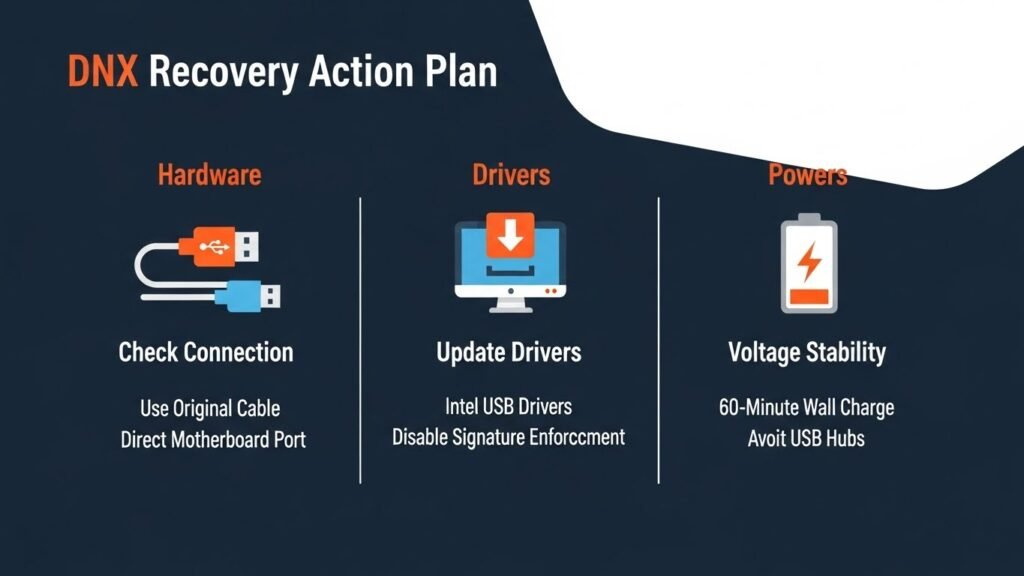
- Plug your tablet into a wall charger, not just a computer.
- Let it sit for at least one hour to get a solid charge.
- Check the charging light to make sure it is actually receiving power.
- Try rebooting again once the battery is at a healthy level.
Cable and Port Sanity Checks
The hardware link between your PC and tablet must be perfect.
- Use the original cable that came with the device if you still have it.
- Avoid USB hubs and plug directly into the computer’s motherboard ports.
- Clean the charging port on the tablet with some compressed air or a toothpick.
- Switch to a different PC if the first one refuses to see the device.
Windows Device Manager Audit
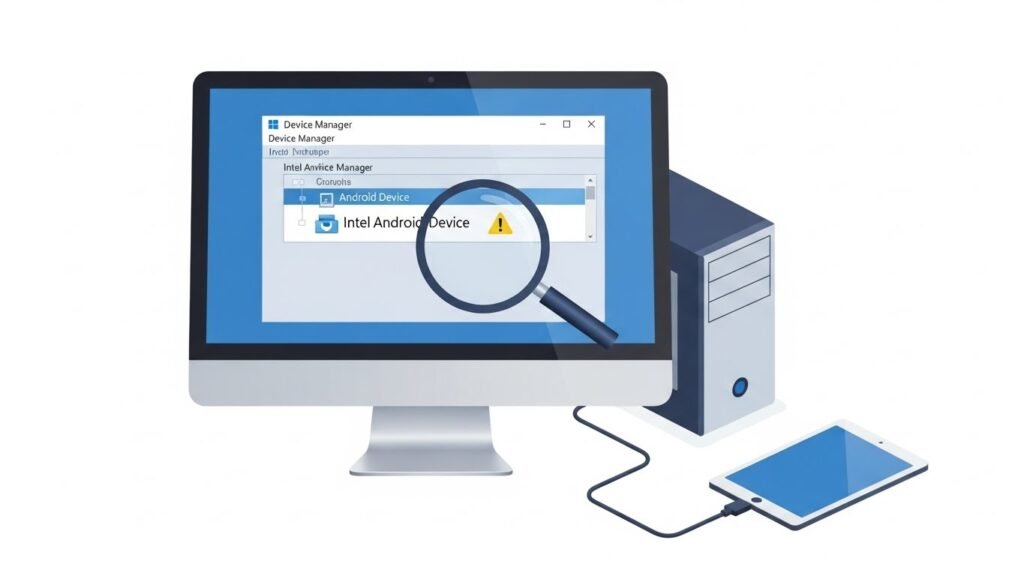
You need to see if your computer even knows the tablet is there.
- Open Device Manager on your Windows PC by right-clicking the Start button.
- Look for an item called Unknown Device or Intel Android Device.
- Watch for changes when you plug and unplug the USB cable.
- Check for a yellow triangle which means you need to install new drivers.
Essential Toolkit for Recovery
To fix the entering dnx mode waiting for fastboot command error, you need some digital tools. Most of these are free and made by Intel or Google. You should download these onto a Windows PC before you start. Having the right kit makes the whole process much smoother. It is like having a proper toolbox for a home repair project.
Setting Up Android Platform Tools
These are the basic commands used to talk to any Android-based device.
- Download the ZIP file containing fastboot and adb from the web.
- Extract the folder to your C: drive for easy access in the terminal.
- Open a Command Prompt inside that specific folder to start working.
- Test the tools by typing “fastboot” to see if the help text appears.
Intel Specialized Flashing Utilities
Intel has its own set of tools designed just for their specific chips.
- Intel Phone Flash Tool is the go-to app for most tablet repairs.
- Manufacturing Flash Tool (MFT) is used for more complex, deep fixes.
- Platform Flash Tool Lite is a simpler version for basic firmware updates.
- Download the version that matches your specific tablet model for best results.
Driver Requirements and Signature Enforcement
Windows can be picky about which drivers it allows you to install.
- Download the Intel Android USB drivers from a trusted source.
- Disable Driver Signature Enforcement in Windows settings if the install fails.
- Restart your computer after installing to make sure the drivers are active.
- Verify the install by checking Device Manager while the tablet is plugged in.
Sourcing the Right Firmware and BIOS
You cannot fix a system without the right files to put back on it.
- Search for your model number on the manufacturer’s official support site.
- Check community forums like XDA for archived files if the company is gone.
- Ensure the region matches your device so you do not break the radio or Wi-Fi.
- Look for XML files because the Intel tools need these to understand the flash.
Step-by-Step Fix: The Safe Recovery Workflow
Now we get to the actual work of fixing your device. Follow these steps in order to avoid making things worse. We will start with the easiest detection check. If that works, we move on to the actual software repair. Take your time and do not rush through the commands.
Step 1: Verification of PC-to-Device Communication
The first goal is to see if the PC can talk to the tablet.
- Connect your tablet to the PC while it shows the DNX message.
- Open your terminal in the folder where you put the fastboot tools.
- Type fastboot devices and hit the Enter key on your keyboard.
- Look for a serial number and the word “fastboot” in the output.
Step 2: Driver Installation and Troubleshooting
If the command above showed nothing, your drivers are likely broken.
- Right-click the unknown device in your Device Manager window.
- Select Update Driver and choose the option to browse your computer.
- Point the folder to where you extracted the Intel USB drivers.
- Confirm the install and try the fastboot devices command again.
Step 3: Non-Destructive Soft Recovery (RAM-Boot)
This is a cool trick that boots a system without changing your files.
- Find a recovery image that is made specifically for your tablet model.
- Type fastboot boot recovery.img in your command window.
- Watch the tablet screen to see if it jumps into a recovery menu.
- Use this menu to wipe the cache or try a factory reset to fix the boot.
Step 4: Utilizing Intel Flashing Tools for ROM Restoration
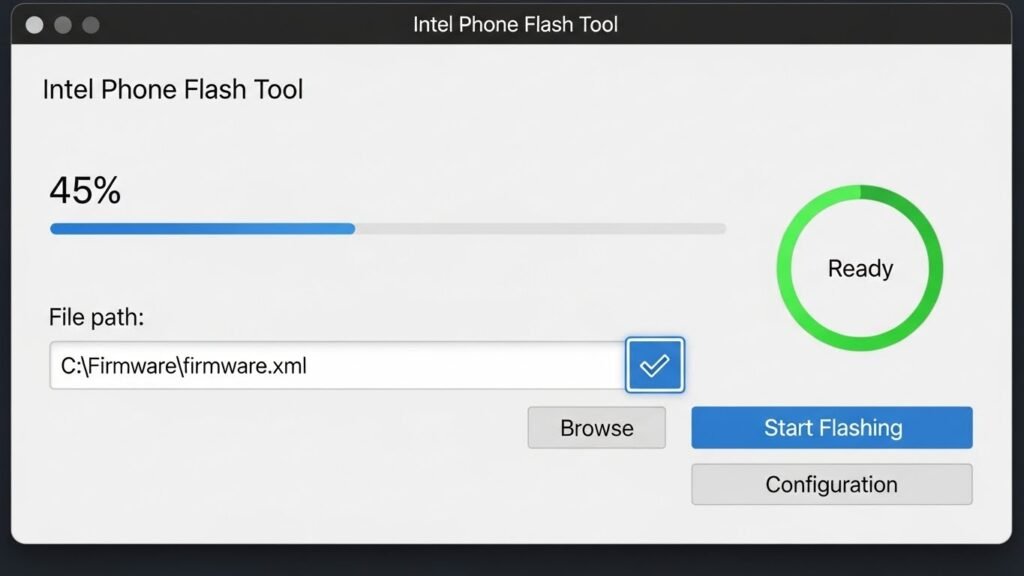
When the easy stuff fails, you have to overwrite the whole system.
- Open the Intel Phone Flash Tool on your Windows computer.
- Click the Browse button and find the firmware XML file you downloaded.
- Connect your tablet and wait for the tool to show a green “Ready” status.
- Click Start Flashing and do not touch the cable until it hits 100%.
Step 5: Advanced Recovery for Corrupted BIOS
If your BIOS is dead, the tablet might not even take a normal flash.
- Look for a specialized BIOS tool like the xfstk-downloader.
- Load the four required files including the firmware and the OS loader.
- Place the device in DNX mode and start the download in the tool.
- Observe the status bar as it tries to rebuild the basic boot brain.
Deep Dive: Mastering Fastboot Commands
If you want to be a pro, you can use the command line for everything. Fastboot is very powerful and gives you more control than a GUI tool. You can flash individual parts of the system one by one. This is great if only one part of your tablet is broken. It also helps you see exactly where an error happens.
Using Metadata Commands
You can ask the tablet for its life story using metadata commands.
- Type fastboot getvar all to see every detail about your hardware.
- Check the bootloader version to make sure it matches your firmware files.
- Look for the “unlocked” status to see if you can flash custom files.
- Verify the partition sizes to ensure the storage chip is still healthy.
Manual Partition Flashing
Sometimes you only need to fix the “brain” or the “memory” of the device.
- Flash the boot image with fastboot flash boot boot.img to fix the kernel.
- Update the recovery using fastboot flash recovery recovery.img for a new menu.
- Repair the main system by typing fastboot flash system system.img.
- Finish the job with fastboot reboot to try and start the tablet.
Wiping Cache and User Data
A messy cache is a common cause for entering dnx mode waiting for fastboot command.
- Type fastboot erase cache to clear out temporary system junk.
- Try fastboot erase userdata if you want to perform a factory reset.
- Be careful because erasing userdata will delete all your personal files.
- Reboot the device after wiping to see if it can now reach the home screen.
Intel Specific OEM Commands
Intel devices have some secret commands that generic phones do not have.
- Try fastboot oem start to see if it forces a boot attempt.
- Use fastboot oem unlock if you need to open the bootloader for repairs.
- Check the manufacturer’s docs for specific commands like “oem dnx-mode”.
- Avoid typing random commands because you could cause permanent damage.
Hardware-Specific Fixes and Device Quirks
Every brand of tablet has its own little personality and bugs. A fix for a Dell tablet might not work perfectly for a Chuwi. You need to know the specific quirks of your brand. This section covers the most popular Intel tablets from a few years back. It will help you find the right path for your specific gadget.
Dell Venue Series Recovery
The Dell Venue 7 and 8 were very popular Intel tablets.
- Look for the “Black Screen of Death” which often mimics DNX mode.
- Use the Dell-specific flash tool if the standard Intel one fails.
- Hold Volume Down while plugging in the USB to trigger a clean fastboot link.
- Check for driver conflicts because Dell has its own set of USB drivers.
Chuwi and Teclast Dual-Boot Complexities
These Chinese tablets are famous for running both Windows and Android.
- Be aware of the partition map which is very crowded and complex.
- Use the “Switch OS” button in the BIOS if you get stuck in a loop.
- Avoid deleting the Windows partitions if you only want to fix the Android side.
- Search for “Dual-OS” firmware specifically made for your exact model.
Insignia and Nextbook Budget Stability
Budget tablets often use cheaper storage chips that fail more often.
- Expect slower flashing speeds because the internal memory is not very fast.
- Watch out for “Write Errors” which might mean the storage is dying.
- Try older versions of the flashing tools if the new ones do not work.
- Keep the tablet cool during a long flash to prevent thermal throttling.
ASUS ZenFone and ZenPad Alternatives
ASUS used Intel chips in many of their older phones and tablets.
- Download the xfstk-downloader as it is the primary tool for ASUS Intel devices.
- Look for “Raw” firmware files instead of the standard ZIP updates.
- Check for the “Intel Moorefield” drivers which are specific to these models.
- Follow ASUS-specific guides because their bootloader is heavily modified.
Comprehensive Troubleshooting Table: Symptoms to Solutions
| Symptom | Likely Cause | Recommended Fix |
| Fastboot sees nothing | Missing or broken drivers | Reinstall Intel drivers and check your USB cable. |
| Device shuts off mid-flash | Low battery or bad cable | Charge for 1 hour and use a high-quality USB port. |
| Flashing fails at 0% | Firmware mismatch | Double-check that your files match your model number. |
| Stuck in DNX loop | Corrupted partitions | Use a full OEM flash bundle to rebuild the system. |
| “Waiting for Device” message | Handshake failure | Restart the PC and try a different USB port on the back. |
Real-World Insights from the Tech Community
Many people have faced the entering dnx mode waiting for fastboot command error. Community forums are full of success stories and warnings. Reading these can save you a lot of time and frustration. It is always better to learn from someone else’s mistakes. You are definitely not alone in this technical struggle.
Reports from Nextbook and Insignia Users
Users of these budget tablets often see DNX after a factory reset.
- The “Reset Loop” is a common complaint on many tech forums.
- Most fixes involve using the Intel Manufacturing Flash Tool (MFT).
- Users recommend having a backup of your BIOS before trying deep fixes.
- Community members have archived old drivers that are no longer on official sites.
Success Stories with Chuwi and Dell Venue
People have unbricked these tablets even when they seemed totally dead.
- One user fixed their Dell by switching to a USB 2.0 port instead of 3.0.
- Chuwi owners often find that a new BIOS file fixes the DNX loop instantly.
- Persistence is key as some people had to try the flash five times to succeed.
- Using a dedicated laptop just for flashing can prevent driver conflicts.
Why Community Mirrors are Lifesavers
Since many of these tablets are older, the official websites are gone.
- Sites like XDA Developers host mirrors for old firmware and tools.
- Always verify the file hash to make sure the download is safe.
- Thank the developers who spent time making these recovery guides.
- Check the dates on forum posts to find the most recent working method.
Expert Strategies to Prevent Re-Bricking
Once you fix your tablet, you never want to see that DNX screen again. There are some simple rules you should follow to keep your device healthy. Taking care of your software is just as important as the hardware. A little bit of caution goes a long way in the world of tech. These tips will help you keep your tablet running smoothly for years.
Precision in Firmware Matching
The biggest mistake people make is using the wrong file for their tablet.
- Check the sticker on the back of the tablet for the exact model name.
- Look for a hardware revision number like “v1” or “v2” in the settings.
- Only download files that mention your specific processor (e.g., Z3735F).
- Avoid “Generic” firmware unless you have no other choice at all.
The 50% Battery Rule
Never try to update or flash your tablet if the battery is low.
- Plug in the charger before you even start downloading files.
- Wait for the green light or a high percentage before you hit “Start.”
- A dead battery mid-flash is the fastest way to kill a tablet forever.
- Use a high-quality wall plug to ensure the power is stable.
Effective Documentation Habits
Keep track of what you do so you can fix it again later if needed.
- Save the working tools in a special folder on your cloud storage.
- Write down which driver version finally worked for your PC.
- Keep a copy of your stock ROM in case a custom one breaks things.
- Bookmark the forum threads that gave you the most help.
Safe Practices for Future Updates
If you want to update your system again, do it carefully.
- Always check for bugs in a new update before you install it.
- Perform a backup of your important photos and files first.
- Disable any “Auto-Update” features so you can control when it happens.
- Read the patch notes to see if the update affects the bootloader.
Myths vs. Facts: Setting the Record Straight
There is a lot of bad info out there about entering dnx mode waiting for fastboot command. Some people will tell you to throw your tablet away. Others might give you dangerous advice that could melt your chip. Let’s clear up the confusion with some cold, hard facts. Knowing the truth will give you the confidence to fix it yourself.
Myth: DNX Mode Means the Motherboard is Dead
- Fact: DNX mode is a software state, not a hardware failure.
- Fact: The chip is still working perfectly if it can show that message.
- Fact: Most devices are revived with just a new set of software files.
- Fact: Do not listen to anyone who says a DNX screen is a “hard brick.”
Myth: Any Android Guide Works for Intel Tablets
- Fact: Intel tablets are special and need Intel-specific tools.
- Fact: Using tools meant for Samsung or Pixel could cause more errors.
- Fact: The boot process for Intel is closer to a PC than a normal phone.
- Fact: Always search for “Intel Android” guides specifically for your model.
Myth: If Buttons Don’t Work, It’s Trash
- Fact: USB commands can often bypass physical button issues.
- Fact: You can force a reboot or a flash using only your computer.
- Fact: Some tablets have a tiny “Reset” pinhole on the side for emergencies.
- Fact: A broken volume rocker is annoying but not fatal for the device.
The Annotated Recovery Flowchart
Follow this flow to visualize your journey back to a working tablet. It starts at the scary error screen and ends at your home screen. Each step is a checkpoint to make sure you are on the right track. If you get stuck, go back one step and try again. Patience is your best friend during this technical process.
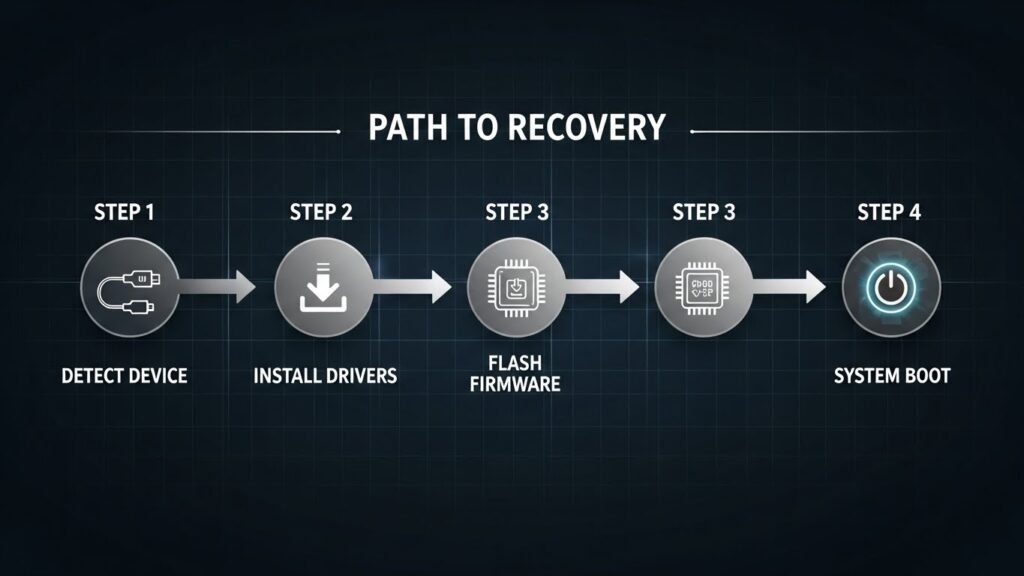
- Start: You see the entering dnx mode waiting for fastboot command message.
- Check 1: Plug in the USB and see if the PC makes a “ding” sound.
- Check 2: Verify that Device Manager shows the Intel Android device correctly.
- Action 1: Run fastboot devices to ensure the link is solid.
- Action 2: Flash the firmware using the Intel Phone Flash Tool.
- Finish: Watch for the tablet to reboot and show the brand logo.
Conclusion: Final Recovery Checklist
Fixing the entering dnx mode waiting for fastboot command error takes some grit. You have learned how to use drivers, fastboot commands, and Intel’s special tools. Most tablets can be saved if you are willing to spend an hour troubleshooting. Remember that tech is meant to be fixed, not thrown away. Take a deep breath and go through your checklist one last time.
- Check the cable and make sure it is not just a cheap charging-only wire.
- Confirm the drivers are active in your Windows Device Manager.
- Charge the tablet so it doesn’t die in the middle of a critical flash.
- Stay patient and read every error message in the flashing tool carefully.
- Reach out to online communities if you get stuck on a specific step.
You have the knowledge now to turn that scary black screen back into a working tablet. Good luck with your recovery and enjoy your revived device!
Frequently Asked Questions
What should I do if my tablet shows a droid with a red triangle instead of the DNX screen?
This typically means you are in a standard recovery mode rather than DNX mode. You can try holding the Power and Volume Up buttons simultaneously to reveal a menu. If this fails, the system partitions may be missing, and you should attempt to force the device into DNX mode to re-flash the software.
Can a faulty SD card cause the entering dnx mode waiting for fastboot command error?
Yes, a corrupted or incompatible microSD card can interfere with the boot sequence. If the tablet tries to read boot files from the external storage and fails, it may default to DNX mode. Always remove any SD cards before starting the troubleshooting or flashing process.
Why does the fastboot devices command return a list of question marks?
If you see question marks instead of a serial number, it means your PC recognizes a device is connected but cannot identify it. This is a classic symptom of a driver mismatch or an unauthenticated connection. Reinstalling the Intel Android USB drivers usually solves this identification problem.
Is it possible to fix this error using a Mac or Linux computer?
While fastboot tools exist for Mac and Linux, the Intel Phone Flash Tool and Manufacturing Flash Tool are primarily designed for Windows. Because Intel tablets require specific .xml configuration files that these tools process, using a Windows environment is highly recommended for success.
How do I identify the specific chipset of my tablet if it won’t turn on?
You can search for your device model on technical database sites to find the processor type. Most tablets stuck in this mode use Intel Atom processors like the Z3735F or Z3560. Knowing the exact chipset is vital for choosing the correct firmware and flashing tools.
Does entering dnx mode waiting for fastboot command indicate the battery is dead?
No, the message itself proves the battery has enough power to light the screen and run the basic logic. However, low battery voltage can cause the device to enter this mode unexpectedly. If the screen flickers or the device shuts off quickly, your battery may be failing.
What is the difference between DNX mode and Droidboot?
DNX mode is a lower-level recovery state built into the Intel hardware for emergency flashing. Droidboot is an Intel-specific version of the fastboot menu that has a graphical interface on the tablet screen. You usually use DNX mode to “push” a Droidboot image to a device that won’t start.
Can I use a USB 3.0 port for the recovery process?
Some older Intel tablets have trouble communicating with the faster blue USB 3.0 ports on modern PCs. If your computer fails to detect the tablet, try using a black USB 2.0 port instead. This often provides a more stable connection for low-level data transfers.
What does it mean if the DNX message is accompanied by a Secure Boot error?
This indicates that the tablet’s security firmware has detected an unauthorized or corrupted bootloader. It is common after a failed attempt to install a custom ROM or an unsigned update. You will likely need to flash a factory-signed BIOS image to resolve the security conflict.
Is there a way to trigger DNX mode manually if my screen is black?
On most Intel tablets, holding Volume Up, Volume Down, and Power all at once for several seconds will force DNX mode. You will know it worked if the “Waiting for fastboot command” text appears. This is useful if your OS is completely gone and the device refuses to turn on normally.
Why does the flashing tool get stuck at the “Wait for device in DNX” step?
This happens when the tool is ready but the tablet has not performed the “handshake” correctly. Try unplugging the USB cable and plugging it back in quickly while the tool is running. Sometimes the PC needs a physical reconnection to trigger the flashing sequence.
Can I fix a “Partitions not found” error through DNX mode?
Yes, this is one of the primary uses for DNX mode. By using the Intel Manufacturing Flash Tool and a full firmware bundle, you can re-partition the eMMC storage. This creates a new map of the drive and restores the missing system, data, and cache sections.
Will a factory reset from the settings menu fix the DNX loop?
If you are already stuck in the DNX screen, you cannot access the standard settings menu. You must use a PC to send a “wipe” command or flash the factory software. A hardware-level reset is the only way to exit a persistent DNX loop.
What should I do if the tablet gets too hot during the flashing process?
High heat can cause the tablet to throttle its processor or shut down to protect the hardware. If the device feels hot, stop the process and let it cool down for twenty minutes. Ensure you are not placing the tablet on a blanket or soft surface while flashing.
Can I use a generic micro-USB cable for this repair?
You should avoid “charging only” cables as they do not have the internal data wires needed for fastboot. Use a high-speed data cable, preferably the one that came with your phone or tablet. A shorter cable is usually better because it reduces the chance of data loss.
How do I disable Driver Signature Enforcement in Windows 10 or 11?
You must go to Settings, then Recovery, and choose “Advanced Startup”. After the PC restarts, select Troubleshoot, Advanced Options, and Startup Settings. Press the number 7 key to disable signature enforcement, which allows the Intel drivers to install.
Why is my serial number showing as “0123456789ABCDEF” in fastboot?
This is a generic placeholder serial number often used by Intel chips in a raw recovery state. It does not mean your device is a fake or a clone. It simply means the device has not loaded its specific ID from the firmware yet.
Does this error happen on iPads or Samsung Galaxy tablets?
No, this specific DNX error only appears on tablets using Intel Atom or Core processors . iPads use Apple’s chips, and most Samsung tablets use ARM-based processors like Snapdragon or Exynos. Their recovery modes are called DFU mode or Download Mode respectively.
What is an “xml” file in the context of Intel flashing?
The .xml file is a set of instructions that tells the Intel Phone Flash Tool which files to send and where they go. It acts like a recipe for the software. Without this file, the flashing tool will not know how to organize the partitions on your tablet.
Can I recover my photos if I am stuck in DNX mode?
It is very difficult to recover data once you are in this state. Your best hope is using the fastboot boot recovery.img command to see if you can access the files through a temporary system. If you perform a full flash to fix the device, all your personal data will be erased.